

Items
Every row or image you see in your collection in Yard Tower is called an item. An item is an individual piece in your collection. For example, an item could be a locomotive and another item a wagon. Add all your items to your collection in Yard Tower.
Adding an item
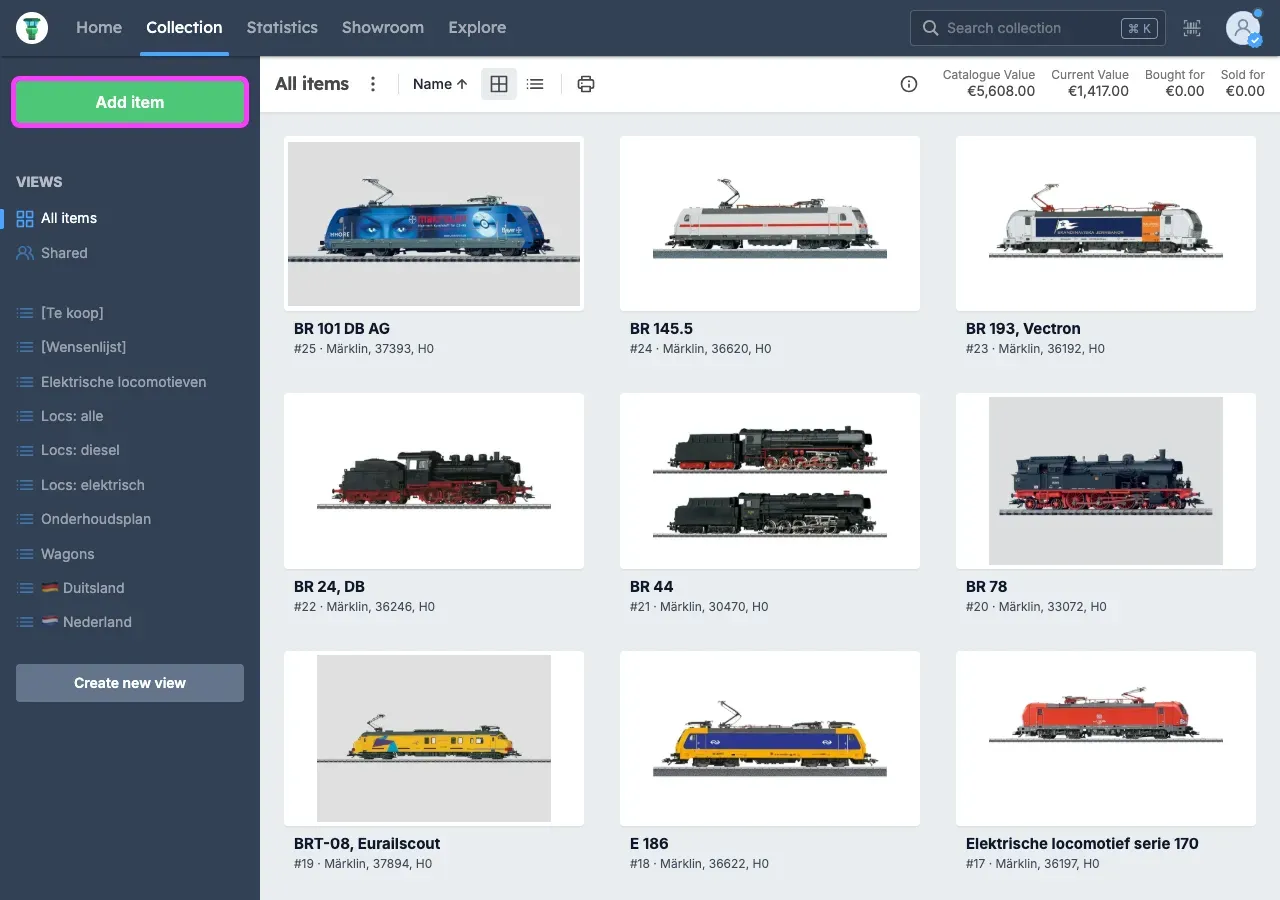
Section titled “Adding an item”To add an item, go to Collection and click Add item in the top left.
You will now see three options:
- Create new item
- Scan barcode
- Import via CSV (learn more)
Below we explain these options.
Option 1: Create new item
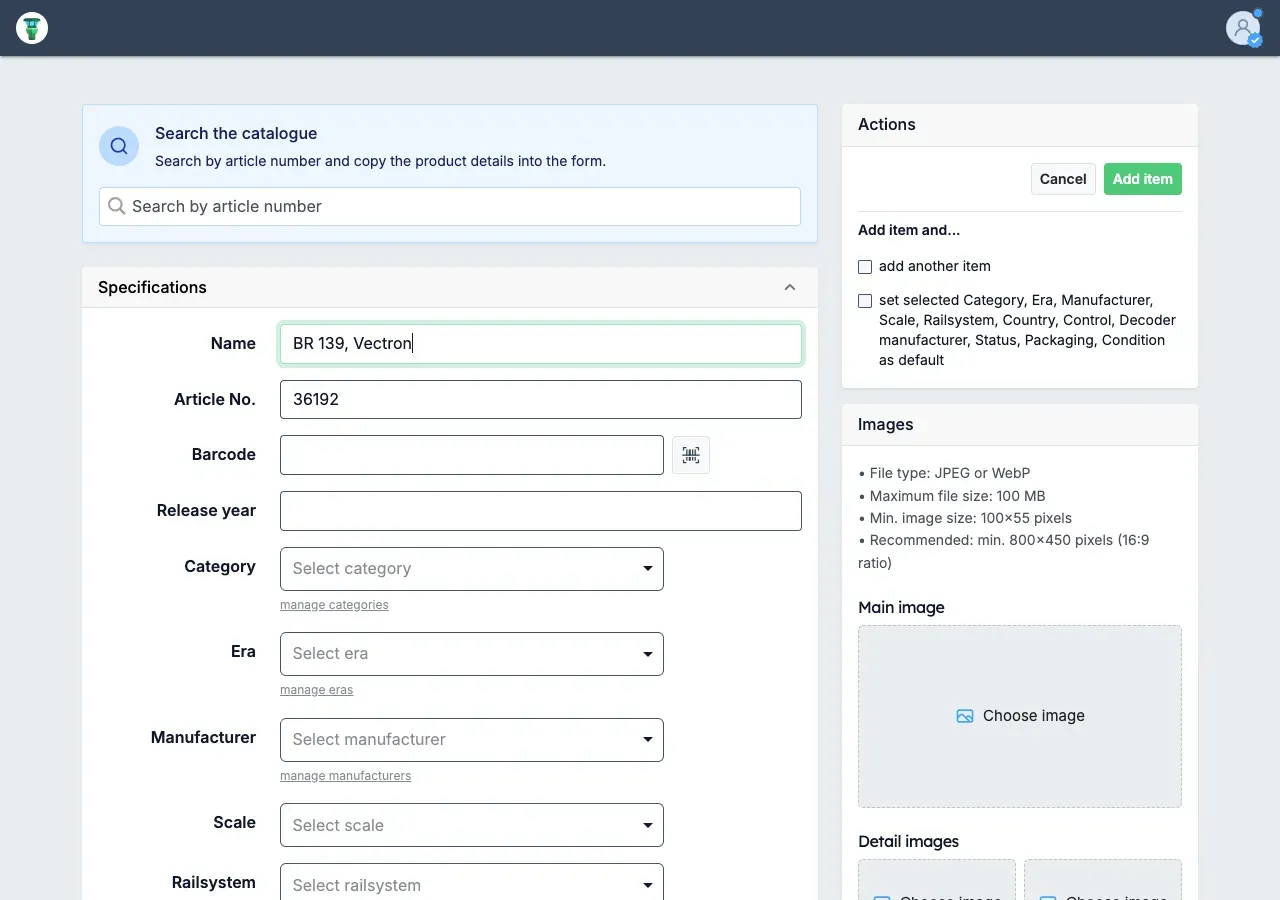
Section titled “Option 1: Create new item”If you choose Create new item, you can manually add an item to your collection. You can then immediately add all the information for your item. When you have filled in everything, click Save in the top right.
Above the form you’ll find Search the catalogue. Type the article number of your item here. If the item is in our catalogue, click Apply details. The product details are then copied into the form. Afterwards, you can add the other information. Can’t find an item in our catalogue? Then fill in the form yourself.
Option 2: Scan barcode
Section titled “Option 2: Scan barcode”If you choose Scan barcode, you can add a new item starting from a scanned code. You can also use the barcode scan button to find an item that already has this code saved. Add barcodes to your items first so Yard Tower can link a scan to the right item. Read more in the barcodescanner guide.
Option 3: Import via CSV
Section titled “Option 3: Import via CSV”If you have already digitally inventoried your collection, you can import your existing collection.
Adding an image
Section titled “Adding an image”For each item you can also add an image. These images are visible in views where the grid layout is active.
Edit an item and click Choose file on the right (this text may vary per web browser). Now choose an image on your computer with JPEG (or JPG) file format.
Editing an item
Section titled “Editing an item”- Go to Collection.
- Select a view on the left side.
- In a view with table layout, click the pencil icon. If the view is in grid layout, first click on an item and then in the top right on the pencil icon.
Deleting an item
Section titled “Deleting an item”View with grid layout
Section titled “View with grid layout”- Go to Collection.
- Select a view on the left side.
- Click on the item you want to delete.
- Then click the bin icon in the top right.
View with table layout
Section titled “View with table layout”- Go to Collection.
- Select a view on the left side.
- Click the pencil icon next to the item you want to delete.
- Now click the three vertical dots in the top right and click Delete….
Customising the input form
Section titled “Customising the input form”You can hide fields from an item’s input form.
- Click on your profile picture in the top right corner. (If there is no picture, the default account image will be displayed.)
- Click Input field settings.
- Select the input fields you no longer want to see and click Save.