

Dynamic views
In Yard Tower, you can create dynamic views to browse a selection of your collection. Dynamic views use filters to create views that are automatically updated as your collection grows.
What does this mean? Well, here are some examples of views you can create:
- A gallery of all Märklin locomotives sorted by purchase date.
- A table of all Hornby wagons from period III.
- A table of all models that are for sale.
- A wishlist of all models you would like to purchase.
The most important thing to know is that a view is simply a different way of looking at the same underlying data! (This means that if you edit data in one view, that data also changes in all other views, because all views use the same data.)
Adding a view
Section titled “Adding a view”You can add and configure views yourself.
- Click on Collection.
- Click New view at the bottom left.
- Enter the name you want to give your view.
- Click Add view at the top right.
Setting up a filter
Section titled “Setting up a filter”One of the core features of views is the ability to set up filters. By setting up a filter, the view shows a selection of your collection.
As an example, let’s create a view with only electric locomotives: Go to a view and click the Filter button at the top. Scroll to the Category section and tick Electric locomotives.
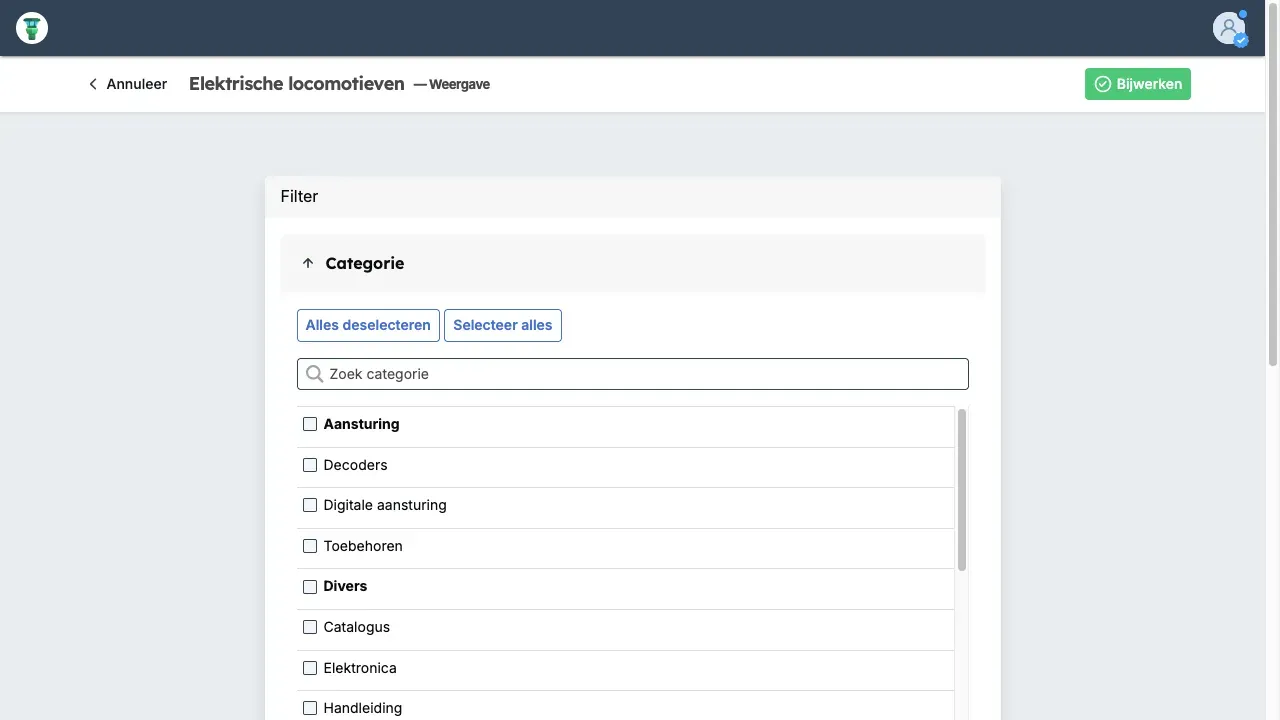
When you’re done setting up filters, click the Save button.
Now you’ve created a view that only shows items in the Electric locomotives category. If you want, you can filter items by multiple criteria.
Resetting filters
Section titled “Resetting filters”If you don’t want to set up a filter, then untick all options.
Switching between layouts
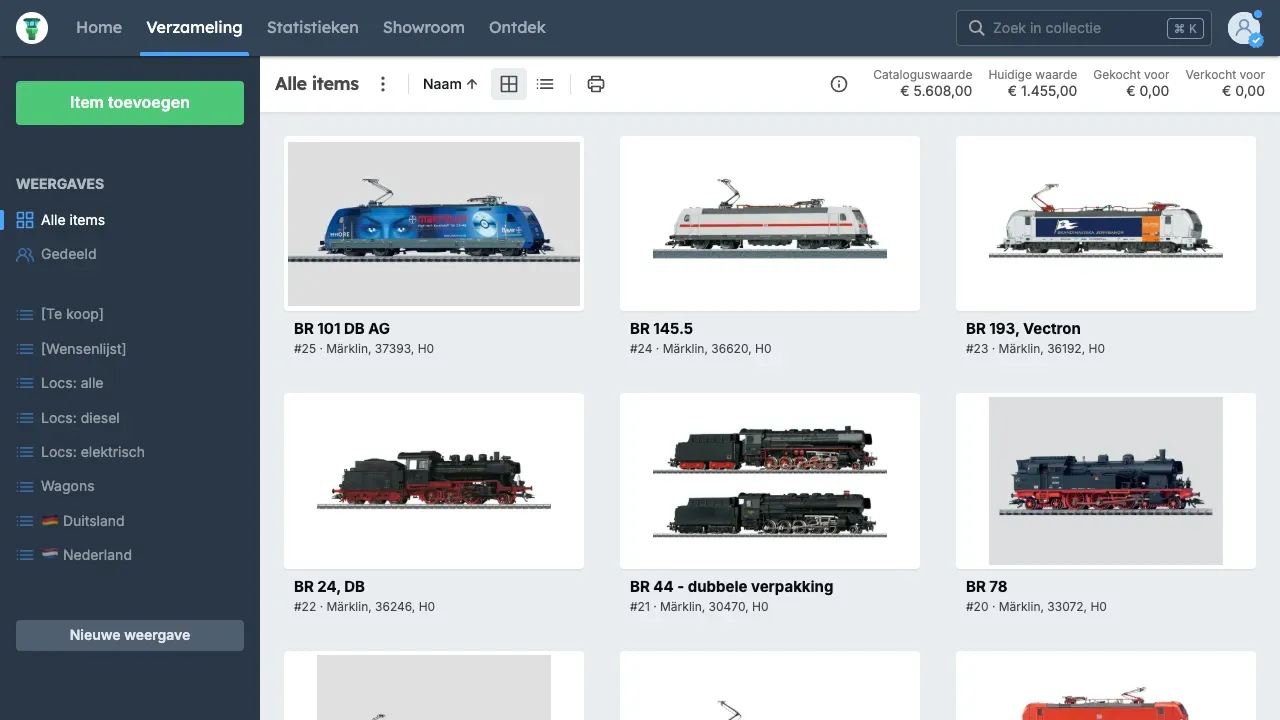
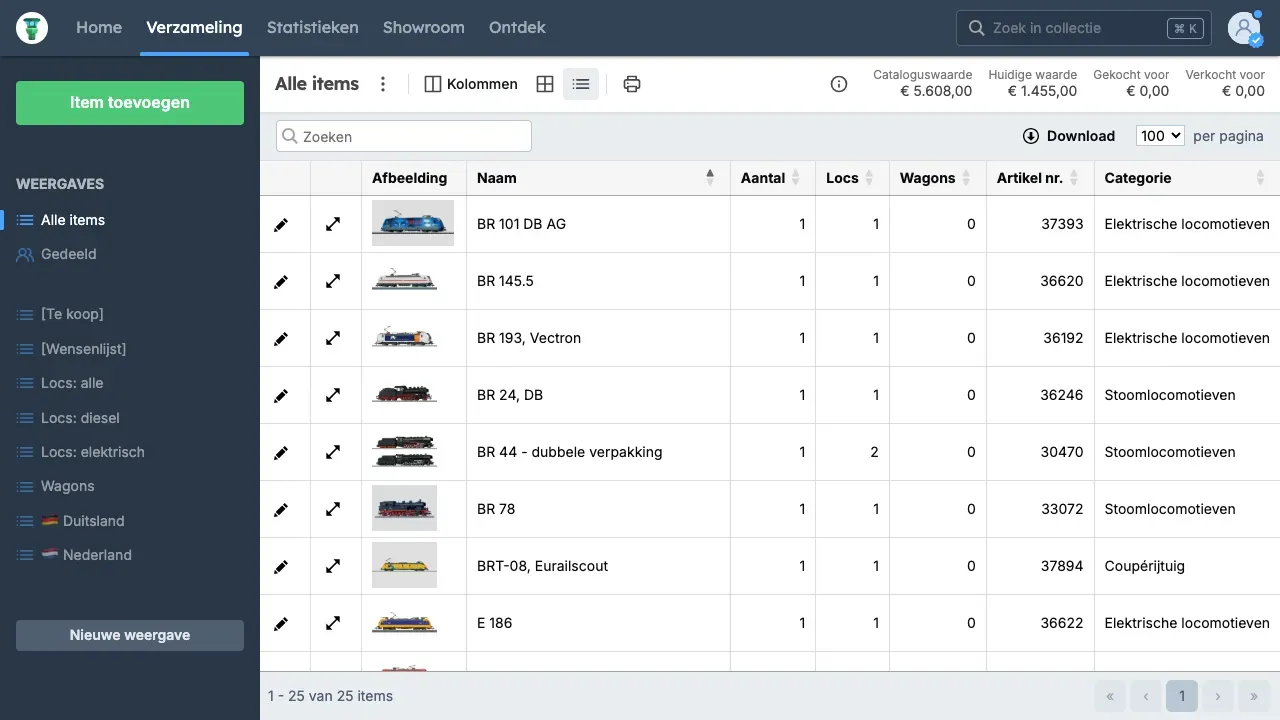
Section titled “Switching between layouts”You can choose between a grid or table layout. The grid shows a gallery with images and the table layout, with rows and columns, is like a spreadsheet.
Switch between layouts with these buttons:

This is an example of a grid layout:
The other example is a table, called table layout:
Sorting
Section titled “Sorting”In the table layout, you can sort by columns by clicking on the column title. Click again on the same title to reverse the sorting.
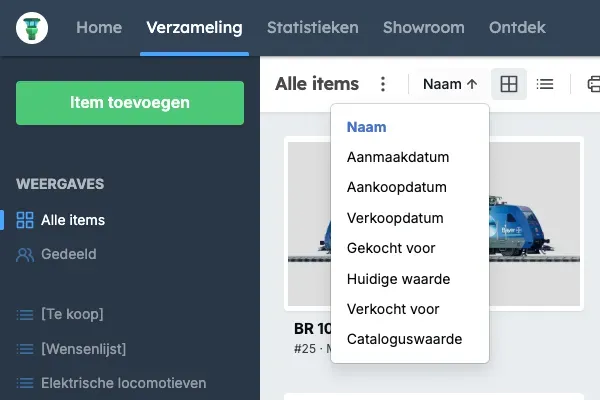
The grid layout can be sorted by clicking on the sort button. This is located to the right of the title. Choose a sorting option from the menu. Click again on the option to reverse the sorting.
Adjusting columns
Section titled “Adjusting columns”In a view where the table layout is active, you can show and hide columns.
- Click on Collection.
- Click on a view on the left → click Columns at the top.
- Select the columns you want to display.
Adjusting column order
Section titled “Adjusting column order”You determine the order of columns by dragging them. Click with your mouse on the column and drag it vertically to the desired position.
Duplicating a view
Section titled “Duplicating a view”You can duplicate a view. Click on the menu button (icon with three dots) and choose Duplicate.
How to search
Section titled “How to search”Only in the table layout can you use search terms to find items in your collection. You can search on all information that appears in the columns of the table.
Enter what you want to search for in the search field at the top left. The results will automatically be displayed in the table.