

Items
Every row or image you see in your collection in Yard Tower is called an item. An item is an individual piece in your collection. For example, an item could be a locomotive and another item a wagon. Add all your items to your collection in Yard Tower.
Adding an item
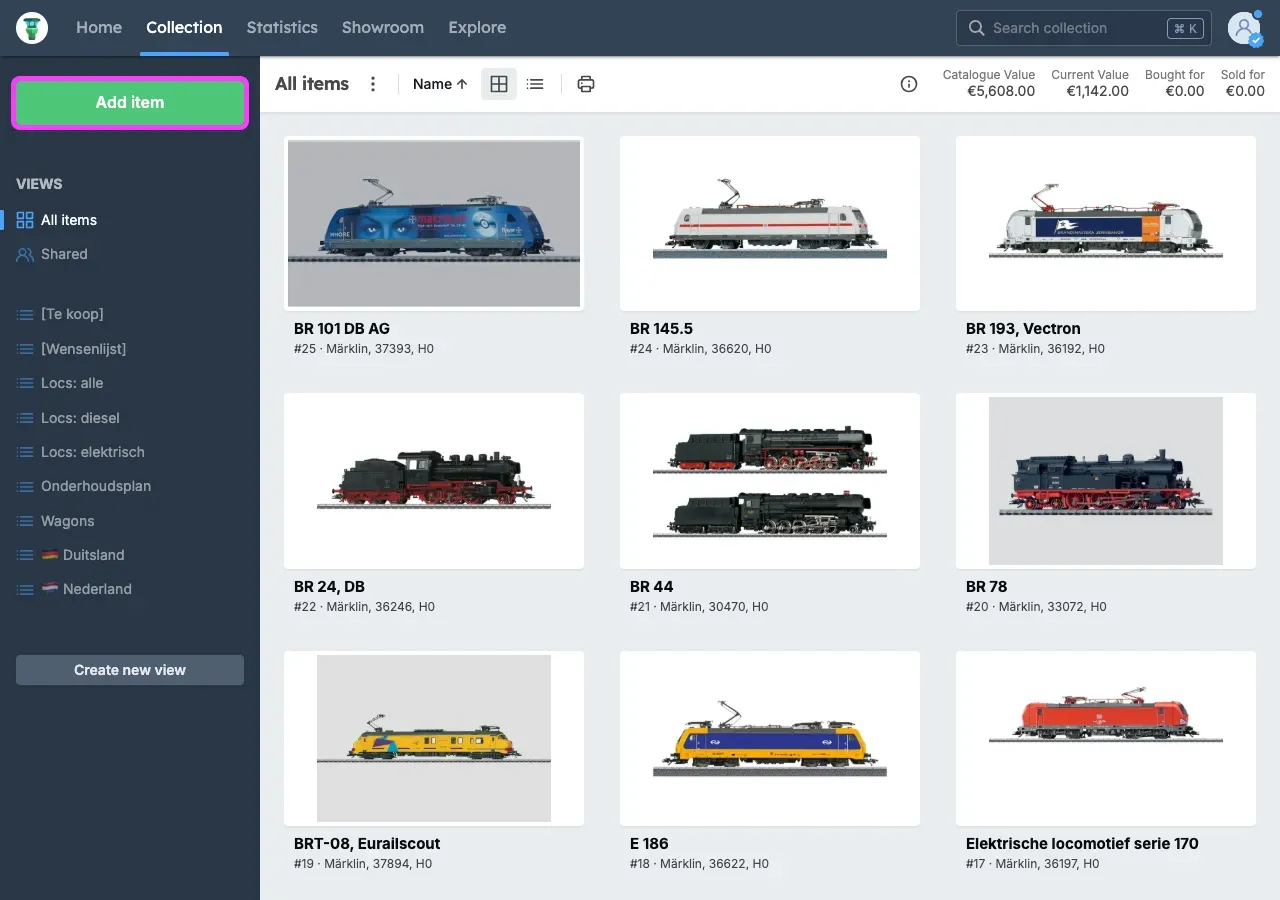
Section titled “Adding an item”To add an item, go to Collection and click Add item in the top left.
You will now see three options:
- Search in catalogue
- Add manually
- Import multiple items
Below we explain the three options.
Option 1: Search in catalogue
Section titled “Option 1: Search in catalogue”If you choose Search in catalogue, you can search for items in our catalogue and quickly add them to your collection. Afterwards, you can supplement information for each item.
Can’t find an item in our catalogue? Then you can enter the item manually.
Option 2: Add manually
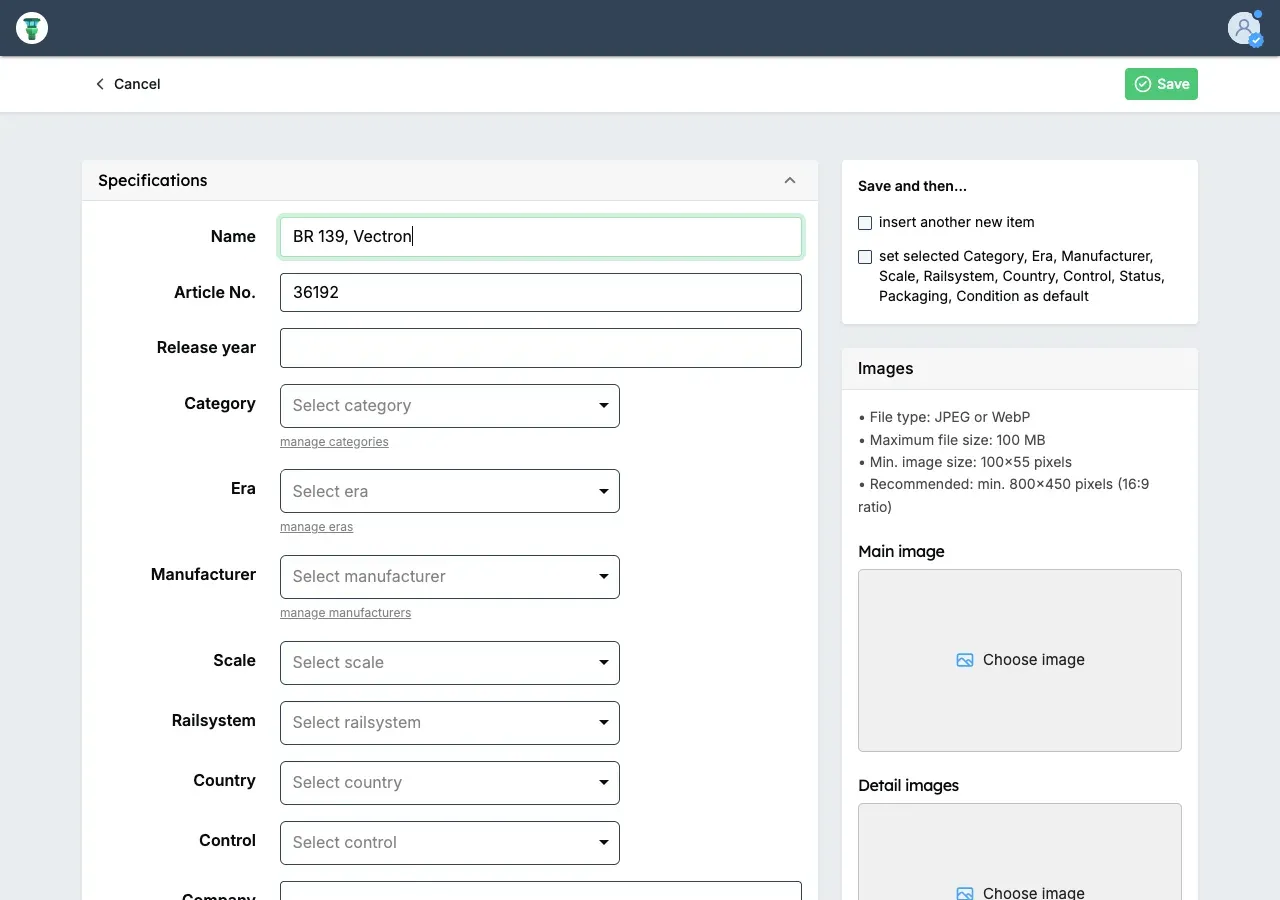
Section titled “Option 2: Add manually”If you choose Add manually, you can manually add an item to your collection. You can then immediately add all the information for your item. When you have filled in everything, click Save in the top right.
Option 3: Import multiple items
Section titled “Option 3: Import multiple items”If you have already digitally inventoried your collection, you can import your existing collection.
Adding an image
Section titled “Adding an image”For each item you can also add an image. These images are visible in views where the grid layout is active.
Edit an item and click Choose file on the right (this text may vary per web browser). Now choose an image on your computer with JPEG (or JPG) file format.
Editing an item
Section titled “Editing an item”- Go to Collection.
- Select a view on the left side.
- In a view with table layout, click the pencil icon. If the view is in grid layout, first click on an item and then in the top right on the pencil icon.
Deleting an item
Section titled “Deleting an item”View with grid layout
Section titled “View with grid layout”- Go to Collection.
- Select a view on the left side.
- Click on the item you want to delete.
- Then click the bin icon in the top right.
View with table layout
Section titled “View with table layout”- Go to Collection.
- Select a view on the left side.
- Click the pencil icon next to the item you want to delete.
- Now click the three vertical dots in the top right and click Delete….
Customising the input form
Section titled “Customising the input form”You can hide fields from an item’s input form.
- Click on your photo in the top right corner. (If there is no photo, the default account image will be displayed.)
- Click Input field settings.
- Select the input fields you no longer want to see and click Save.