

Import
With our import function, you can easily add multiple model trains to Yard Tower. On this page, you’ll learn how to use our tool to add model trains in bulk to Yard Tower.
Before you start
Section titled “Before you start”To get started, you’ll need an empty spreadsheet in a programme such as Microsoft Excel or Google Sheets that you save as a comma-separated value (CSV) file.
Import items
Section titled “Import items”There are several ways to add items to Yard Tower. Uploading a CSV file is a quick method. You can import 200 items at a time. Importing a file consists of two steps: first, you prepare the spreadsheet file outside Yard Tower and save it as a CSV file. Then you use our import tool to add your model trains to Yard Tower.
Download example CSV file
Section titled “Download example CSV file”You can download an example CSV file. You can use this to import your collection. Also bear in mind with this example our guidelines for special fields.
Preparing for import
Section titled “Preparing for import”Follow these steps to prepare your file for import.
- Create an empty sheet in a spreadsheet programme such as Excel or Google Sheets.
- Create a column for Name
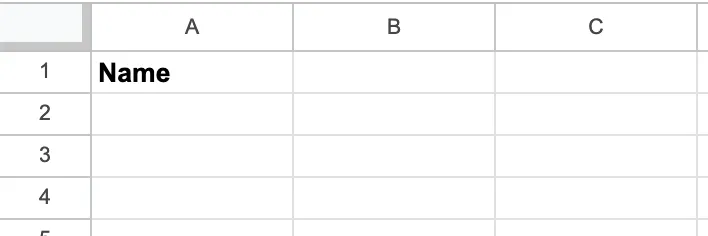
- Next to the Name column, add the columns Article No. and Scale.
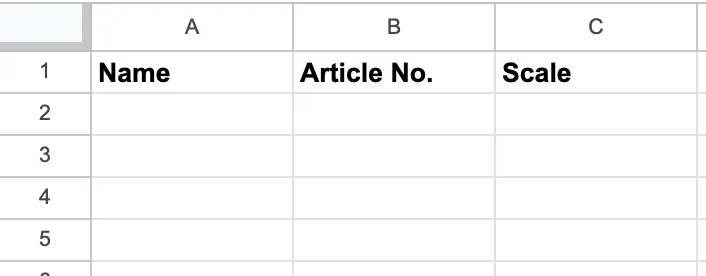
- Add your model train information to the relevant fields in the spreadsheet.
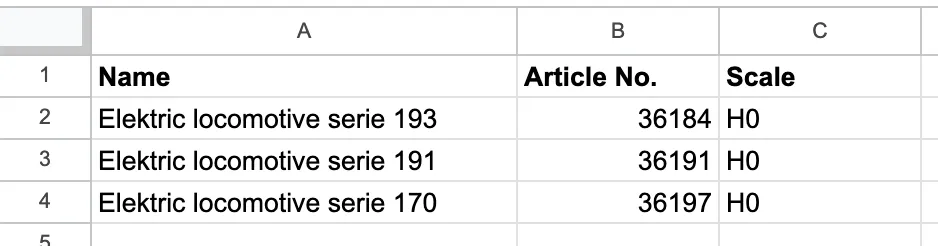
Save the file in CSV format. This option can usually be found in the File menu, with the name “Export as .CSV” or “Download as CSV”. The different spreadsheet programmes may vary slightly. If you use a different file type, we cannot import your file.
Well done! Now you have prepared a CSV file and are ready to import it into Yard Tower.
Import file
Section titled “Import file”Follow these steps to import your items into Yard Tower.
- Navigate to the Collection tab in the navigation bar.
- Click the Add item button on the left.
- Click the Import items button.
- Click Choose file and select the file from your computer.
- Click the Continue to review button to check the fields in your file. If a field has an incorrect value, you’ll see a notification. If that’s the case, adjust your CSV file so the field is correct. Keep our guidelines for special fields in mind.
- Click the Import button to import your file.
After the import is complete, you can view your model trains in Yard Tower.