

Custom fields
Yard Tower is designed to document all information about your items as comprehensively as possible. By default, Yard Tower already includes many fields where you can enter this information.
Do you want to record other information and are these standard fields not sufficient? You can add your own custom (text) fields as desired. You determine the name and location of these fields yourself. Custom fields are active for every item.
Example
Section titled “Example”For example: you want to keep track of which shop you bought something from.
You can add a custom field for this purpose.
Managing custom fields
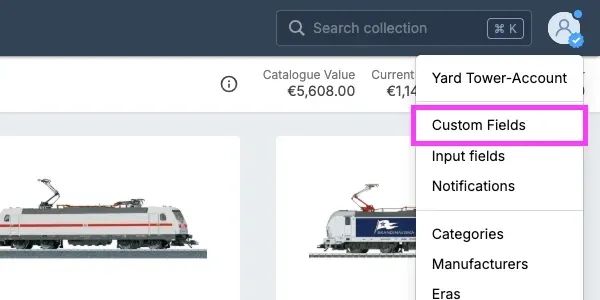
Section titled “Managing custom fields”- Click on your photo in the top-right corner. (If there is no photo, a default account image will be displayed.)
- Click on Custom fields.
- Click on Edit to configure a custom field.
Activating a field
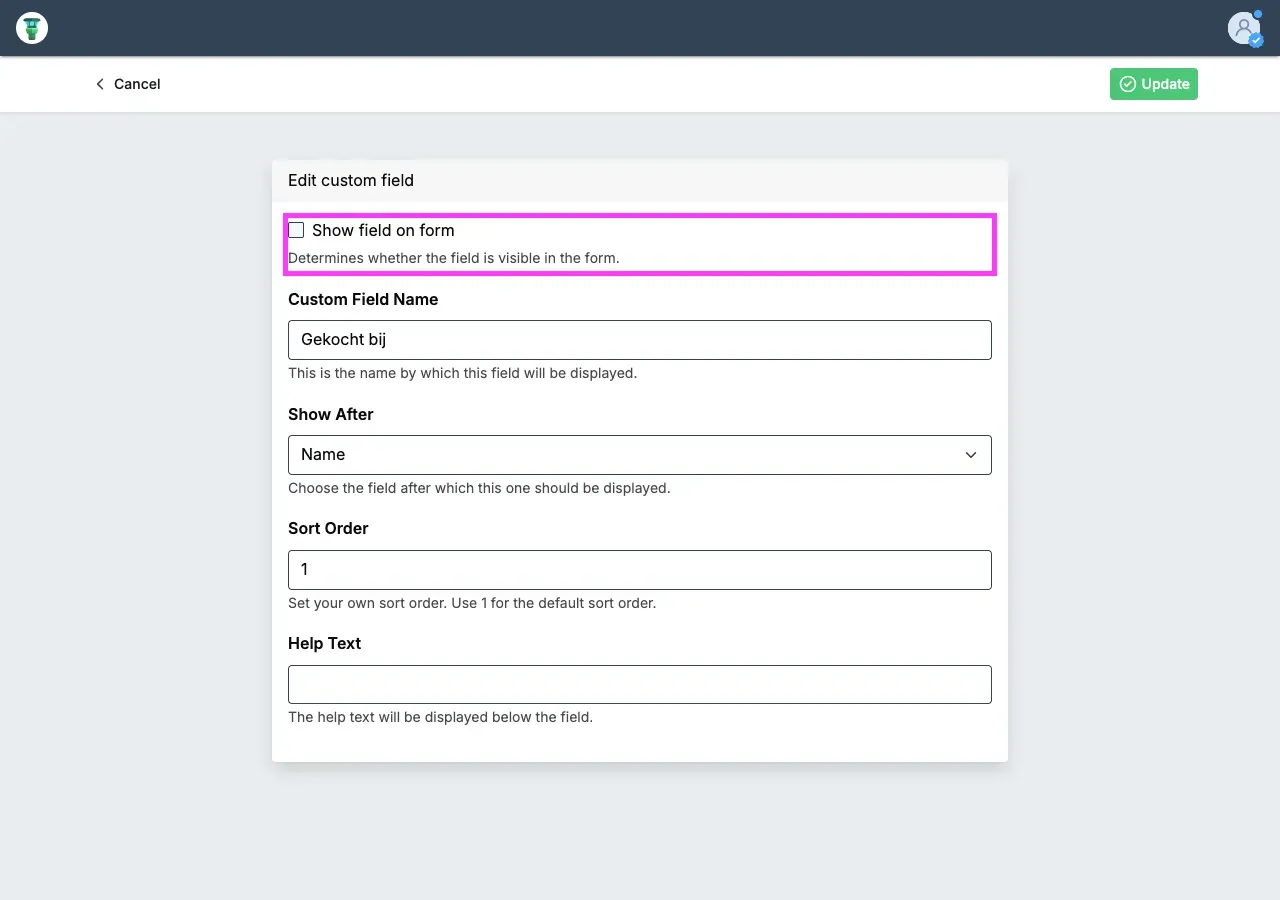
Section titled “Activating a field”Each custom field you have available can be activated and deactivated. When you activate a field, it will be displayed in the form when you add or edit an item.
After you have set up a custom field, it may not be displayed in a table view. You will then need to add it to the view yourself. Click on Columns in the view and activate the custom field there.
Setting position
Section titled “Setting position”For each field, you can specify the position of the field. Select a standard field under Show after. Your custom field will then be displayed below the selected one.
Setting order
Section titled “Setting order”If you want to display multiple custom fields under the same (standard) field, use Sort order to determine the order of the custom fields.
Adding help text
Section titled “Adding help text”For each custom field, you can add help text. You can use this to describe what this field is for.