

Getting started
This quick start guide gives you an introduction to Yard Tower. Here’s what we’ll cover:
- Collection: contains all the items you’ve added.
- An item: an individual entry in your collection.
- Custom fields: fields you add and tailor to your needs.
- Views: ways to look at a specific subset of your collection.
When you open Yard Tower, you’ll see the Dashboard. The Dashboard shows a number of statistics about your collection. We won’t go into the Dashboard further right now.
Start your collection
Section titled “Start your collection”Let’s start by cataloguing your collection. In Yard Tower’s menu you’ll find Collection. The collection holds all your items and is one of the most important places in Yard Tower. Here you can add and manage all your items (model trains, wagons, scenery, etc.).
What is an item?
Section titled “What is an item?”Every row or image you see in your collection is called an item. An item is an individual entry in your collection. For example, one item might be a locomotive and another a wagon. Add all your items to your collection in Yard Tower.
How to add an item
Section titled “How to add an item”The best way to understand what an item is, is to create one.
To add an item, go to My collection and click Add item in the top left.
You’ll now see three options:
- Search in catalogue
- Add manually
- Import multiple items (learn more)
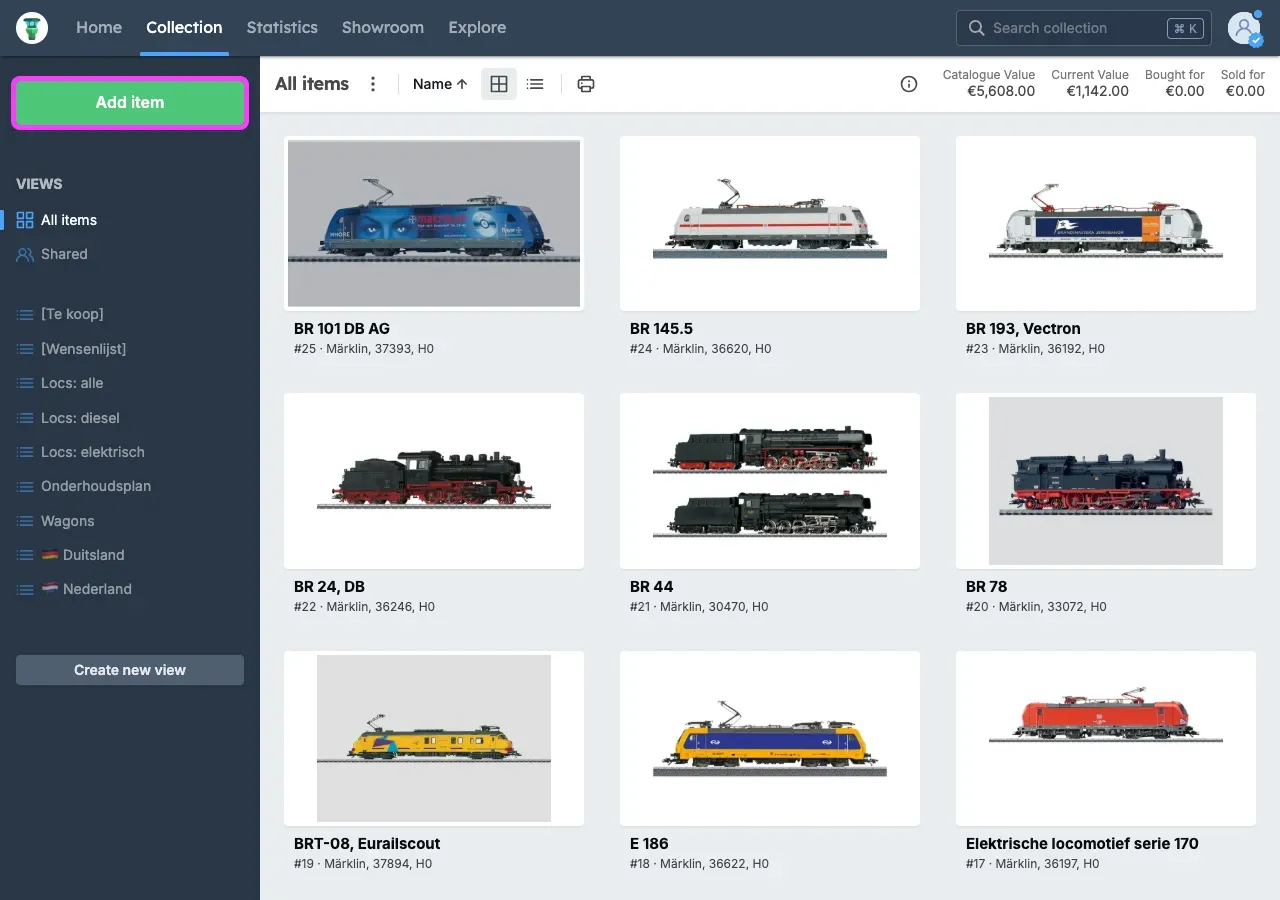
If you choose Search in catalogue, you can search our catalogue and quickly add items to your collection. Afterwards, you can add more information for each item.
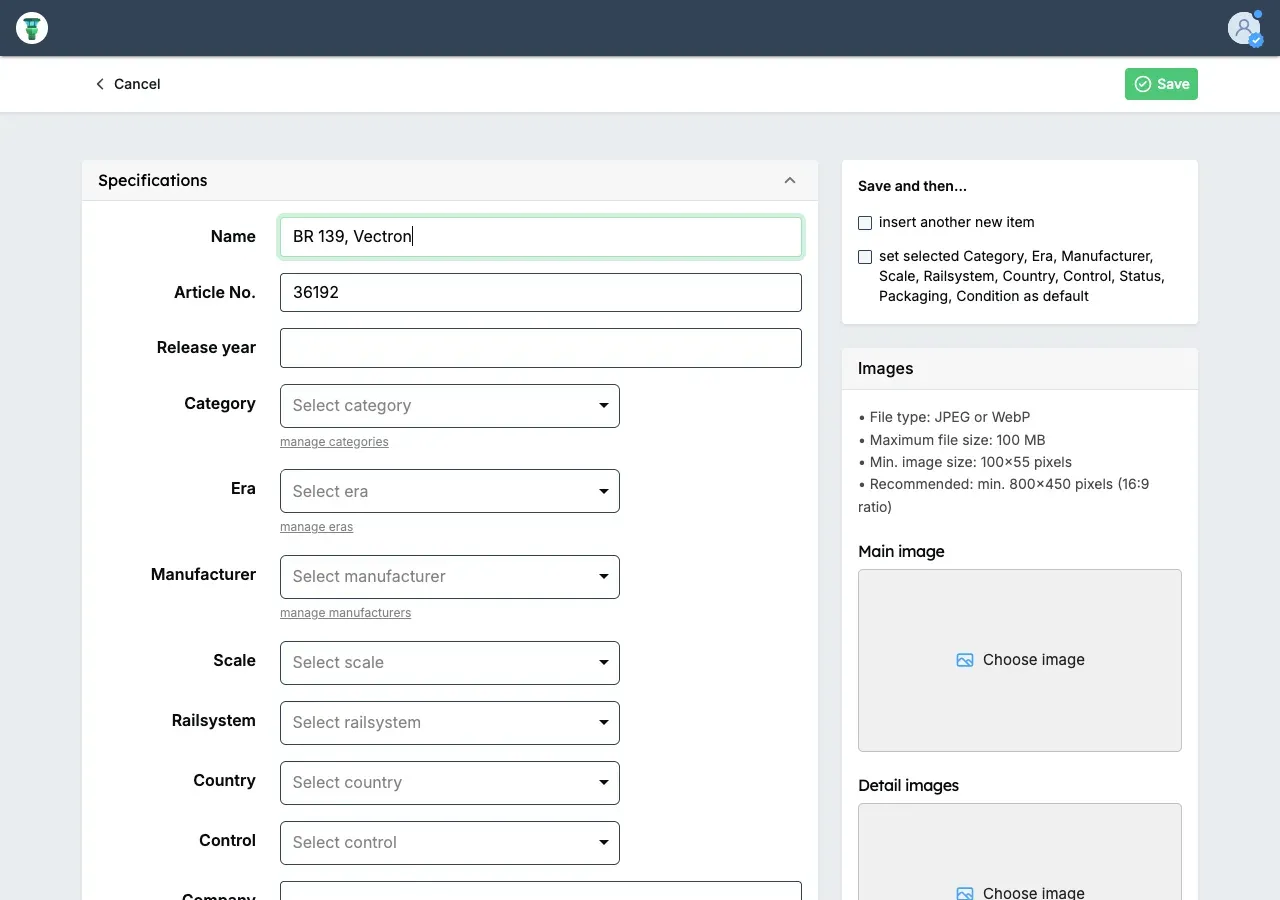
If you choose Add manually, you can add an item to your collection yourself. You can immediately add all the information for your item. When you’ve filled everything in, click Save in the top right.
What is a custom field?
Section titled “What is a custom field?”Do you want to store other information and are the standard fields not enough? You can add extra (text) fields and customise them to your needs. You decide the name and location of these fields. Custom fields are available on every item.
How to add a custom field
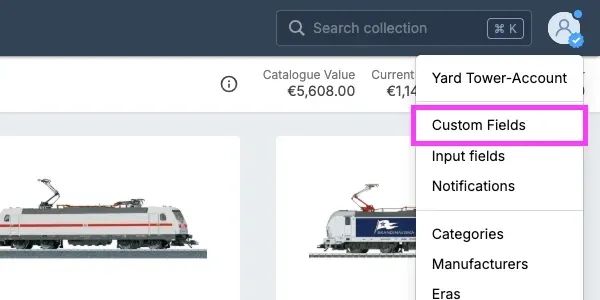
Section titled “How to add a custom field”To configure custom fields, click your name in the menu bar and then click Custom fields.
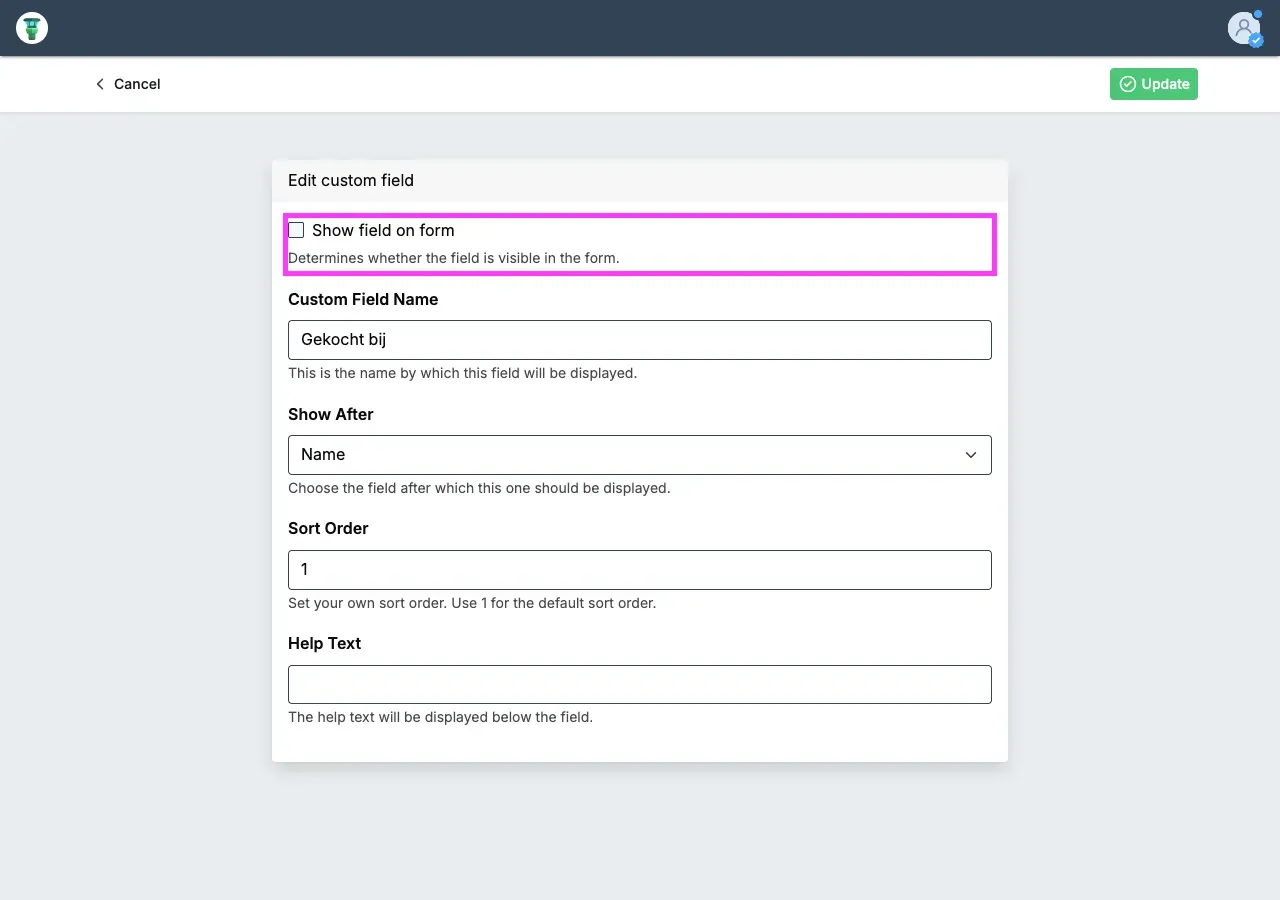
To use a custom field, enter the name, choose after which field your custom field should be shown, and tick the Show field in form checkbox. Click the Save changes button to save your custom field.
When you edit an item now, your new custom field will appear in the position you selected.
What is a view?
Section titled “What is a view?”As your collection grows because you add more items, you’ll sometimes want to look at only a specific part of your collection. What if you only want to see locomotives? What if you only want items from a particular period? What if you only want items from a particular manufacturer, from a particular period?
Instead of going through all items, you can set filters and hide unnecessary information. By creating different views with different criteria, you can focus on exactly what you want to see.
If you change filters or sort columns, those changes apply only to that view. But if you make changes to an item—such as changing the text in a field—you will see that in all views.
How to add a view
Section titled “How to add a view”To add a view, go to Collection and click the New view button.
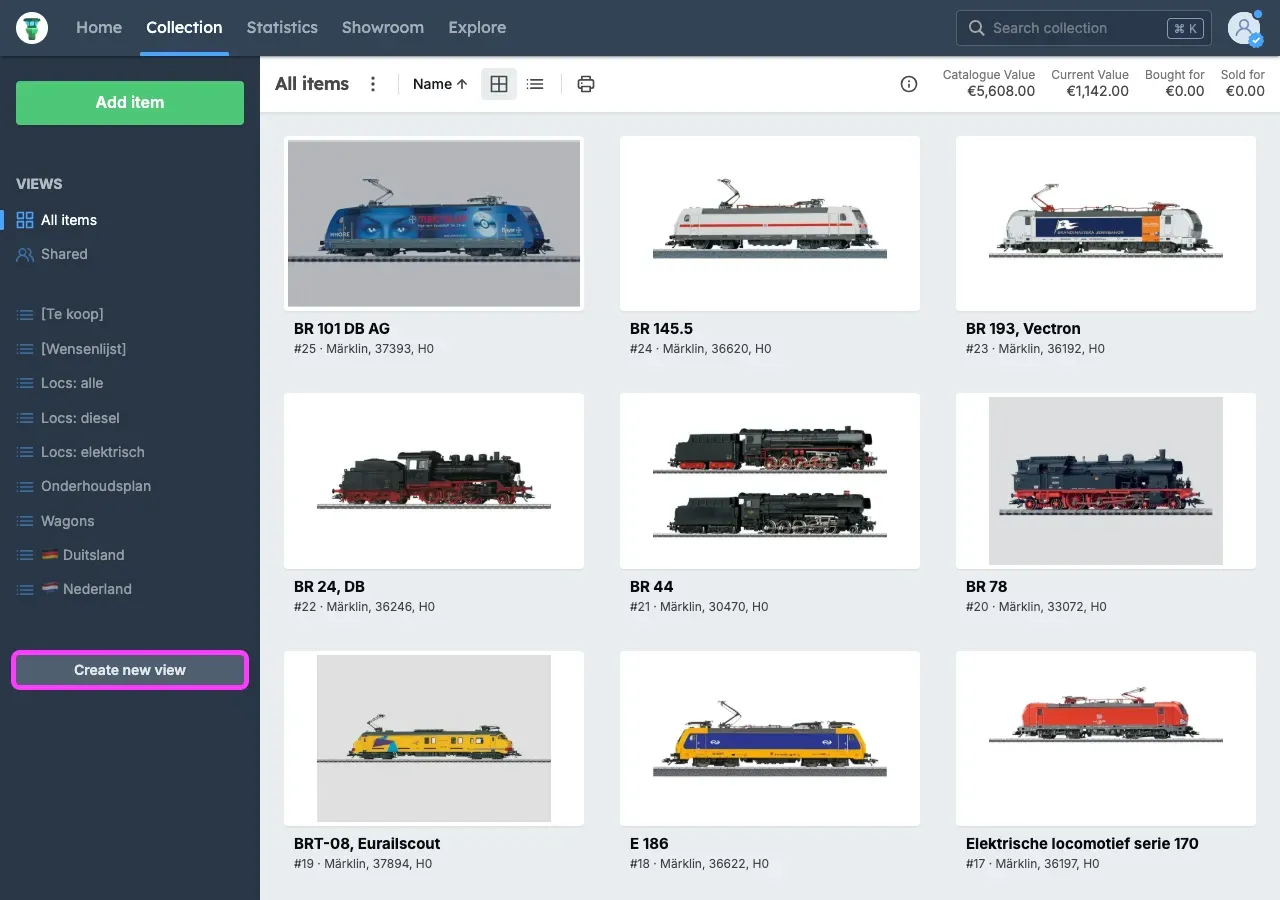
Next, enter a name for your view. You can always change this name later. Click the Create new view button to continue.
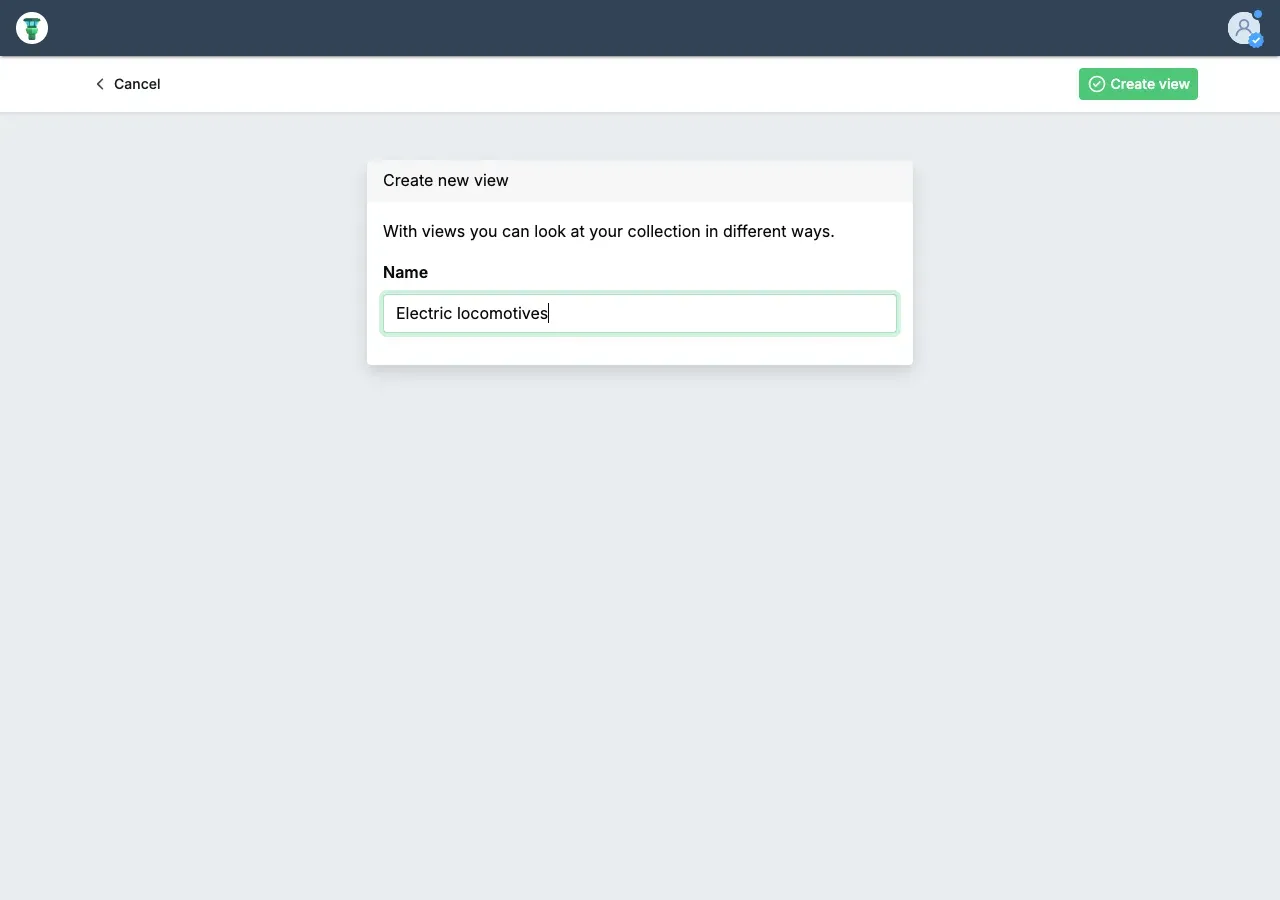
One of the core features of views is the ability to set filters.
For this view, we want to filter on Electric locomotives. If you don’t want to set a filter, don’t tick any options. Scroll to the Category section and tick Electric locomotives.
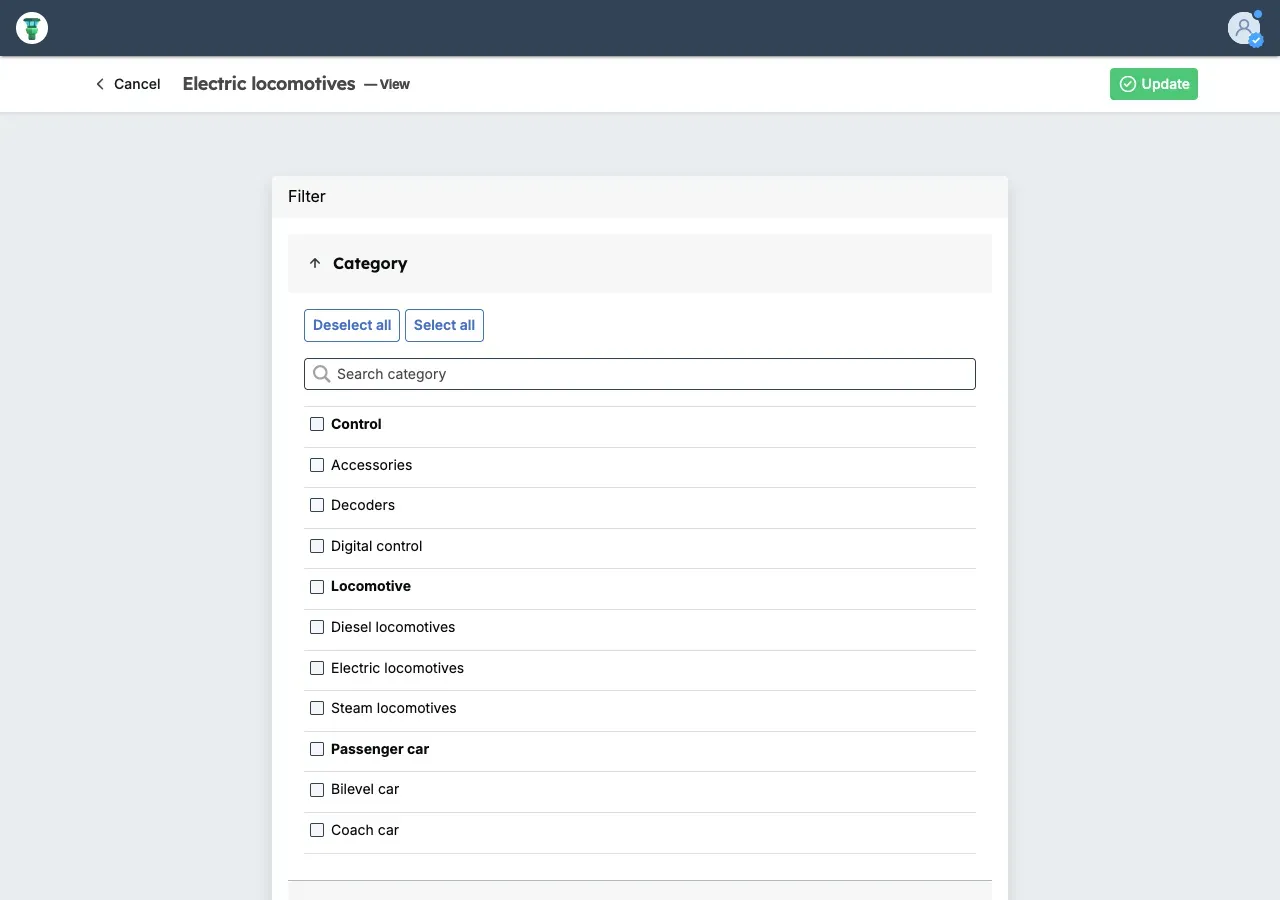
When you’re done setting filters, click the Save button.
You’ve now created a view that only shows items in the Electric locomotives category. If you like, you can filter items on multiple criteria. To edit the view, click the Filter button.
You’ve learned the basics
Section titled “You’ve learned the basics”You now know the basics of adding items to your collection, entering more information with custom fields, and creating views with filter criteria. Start adding items now and take control of your collection.